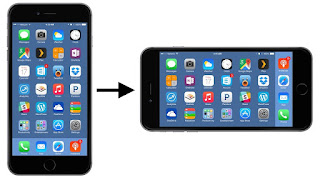
How to change android screen orientation in your app building is a common question for android entry level developer. There are nine types of android screen Orientation. Each orientation works with default, sensor and user mode. And only one mode which is unspecified in properties. If you don't use any android screen orientation properties then it will works as unspecified by default. In order learn how to change android app screen orientation then follow the following steps. (a) android :screenOrientation= "portrait" (b) android :screenOrientation= "landscape" (c) android :screenOrientation= "reversePortrait" (d) android :screenOrientation= "sensorPortrait" (e) android :screenOrientation= "userPortrait" (f) android :screenOrientation= " reverse landscape" (g) android :screenOrientation= "user landscape " (h) android :screenOrientation= "unspecified" (i) android :screenOrientation= ...
Building Bangla Supported Android Application in Android Studio is possible by using custom typeface. Just Do the following steps that i described Step1 : Go To Android Project main and make a new Directory named "assets" Step2: Now Again make another new directory among assets file named "fonts" Step3: Now Download Kalpurush font from here as .ttf file format. Step4: Copy And Paste this Bangla font to your fonts directory in android studio. Step5: Write some code at your ActivityMain.Java Button btn; @Override protected void onCreate(Bundle savedInstanceState) { super.onCreate(savedInstanceState); setContentView(R.layout.activity_main); btn= (Button) findViewById(R.id.button); Typeface myCoustomFont=Typeface.createFromAsset(getAssets(),"fonts/kalpurush.ttf"); btn.setTypeface(myCoustomFont); Step6: ActivityMain.xml will looks like
Color in Material Design is inspired by bold hues juxtaposed with muted environments, deep shadows, and bright highlights. This color palette comprises primary and accent colors that can be used for illustration or to develop your brand colors. They’ve been designed to work harmoniously with each other. The color palette starts with primary colors and fills in the spectrum to create a complete and usable palette for Android, Web, and iOS. Google suggests using the 500 colors as the primary colors in your app and the other colors as accents colors. Themes enable consistent app styling through surface shades, shadow depth, and ink opacity. Color range: 500 Color Code: #F44336 Color range: 50 Color Code: #FFEBEE



Comments
Post a Comment